Every question a shopper cannot answer for herself becomes a message you have to
answer for her: where an order is, which address is on file, how many points she has earned. The
Account area takes that traffic off your plate. Signed-in customers manage their own details and
self-serve everything tied to them: profile and password, saved addresses, favorites, loyalty
rewards, store credit and gift cards, and how they want to be contacted.
The problem: every day a few customers message you just to ask
where their order is, and each one costs you minutes of looking things up and typing an answer the
shop already knows.
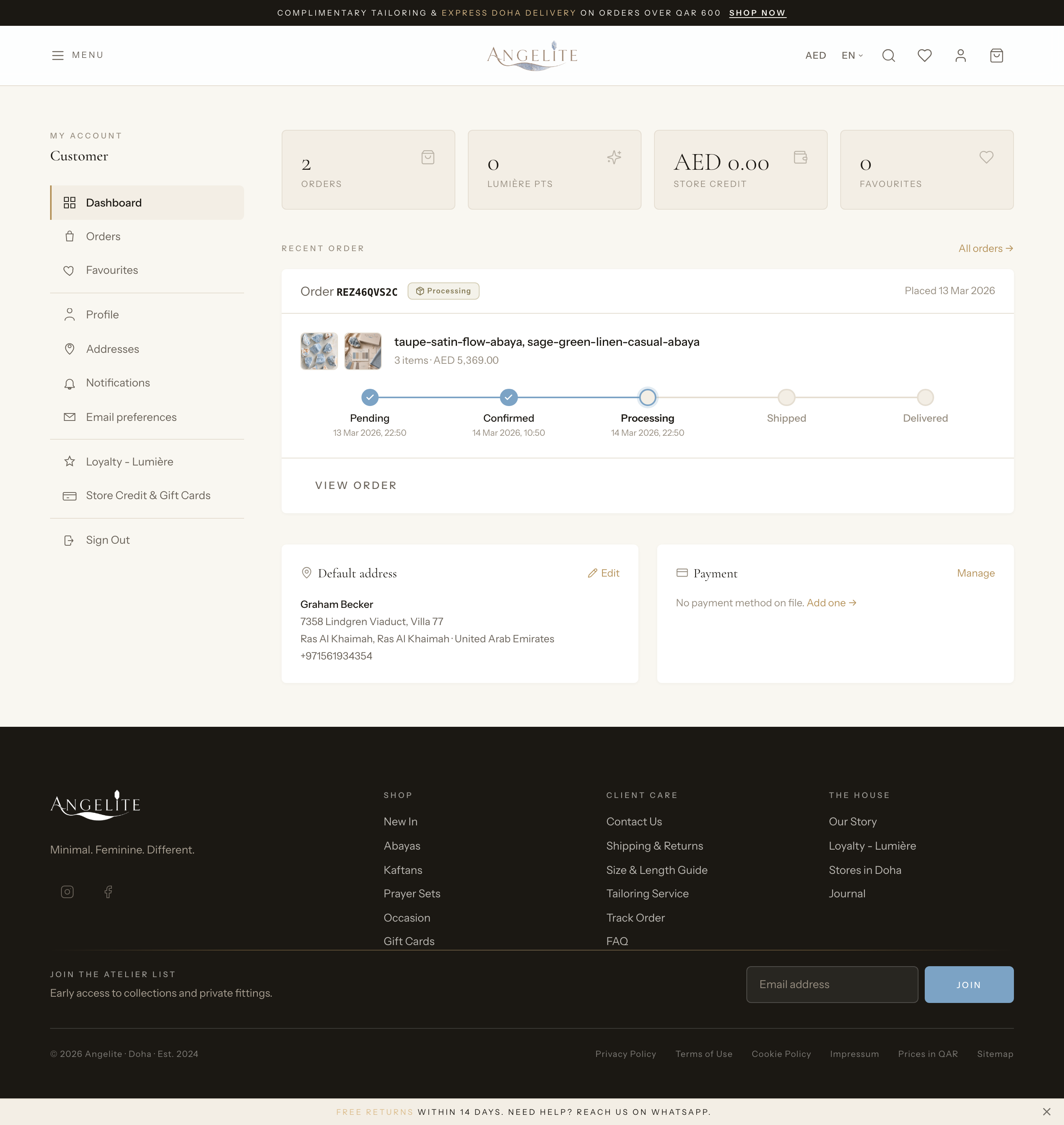
The first screen a customer sees after signing in: a friendly overview of her
account. Her most recent orders sit at the top with their status, next to a few key figures and
quick links to everything else in the Account area, so she answers her own question in seconds
instead of writing to you.
In practice
Say a regular in Doha bought a ready-to-wear abaya last week and wants to
check whether it has shipped, without digging through emails.
How Angelite handles it: she taps Account in the storefront
menu and lands straight on the dashboard. Her recent abaya order sits right at the top with its
status, and the quick links beside it take her to the full order, her saved addresses or her
rewards in one tap, so she never hunts around the site.
How to use it
Sign in and open Account from the storefront menu.
The dashboard opens on an overview of recent orders and account highlights.
Use the links to jump to orders, profile, addresses, favorites, rewards or the wallet.
Where: Account (the landing page of the signed-in area).
My details
Profile
Customer
The problem: a customer changes her phone number or email and
nobody tells you. Delivery calls go to a dead number, order updates land in an abandoned inbox,
and fixing it means she has to message you and you have to edit her record by hand.
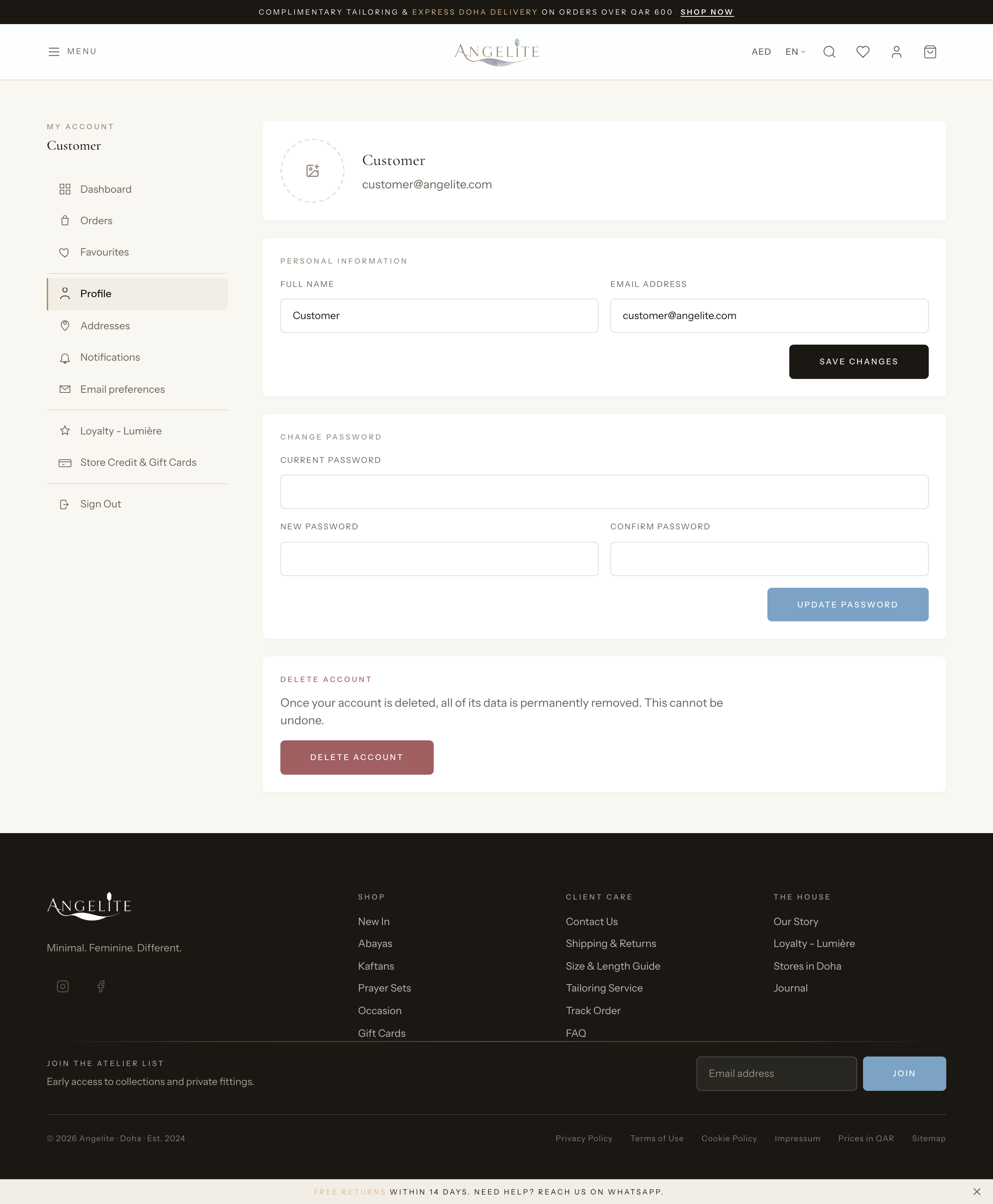
Where a customer keeps her own details current, with no help from your staff: her
name, email and phone, her password, and her profile photo. It is also where she can permanently
close her account if she chooses to.
In practice
Imagine a bride-to-be who changed her phone number and wants her made-to-order
wedding kaftan alteration reminders to reach the new one, not her old number.
How Angelite handles it: she opens Account → Profile,
edits the phone field and saves. If she also updates her email, Angelite sends a confirmation link
to the new address so a typo can never lock her out. From the same page she can refresh her profile
photo or change her password by entering the old and new one together.
How to use it
Open Account → Profile.
Edit the name, email or phone and save; changing the email asks the customer to confirm it again
by clicking a link sent to the new address.
Change the password by entering the current one and a new one.
Upload a profile photo, or remove the current one.
To close the account, open the delete section, confirm with the password, and accept the warning.
Where: Account → Profile.
Please note: deleting an account is permanent and cannot be undone, so
it always asks for the password first. Past orders are kept for accounting but stripped of personal
details.
Addresses
Customer
The problem: a returning customer has to retype her full address
at every checkout. Each retype is a fresh chance to mistype the delivery details, or to lose
interest and walk away before paying.
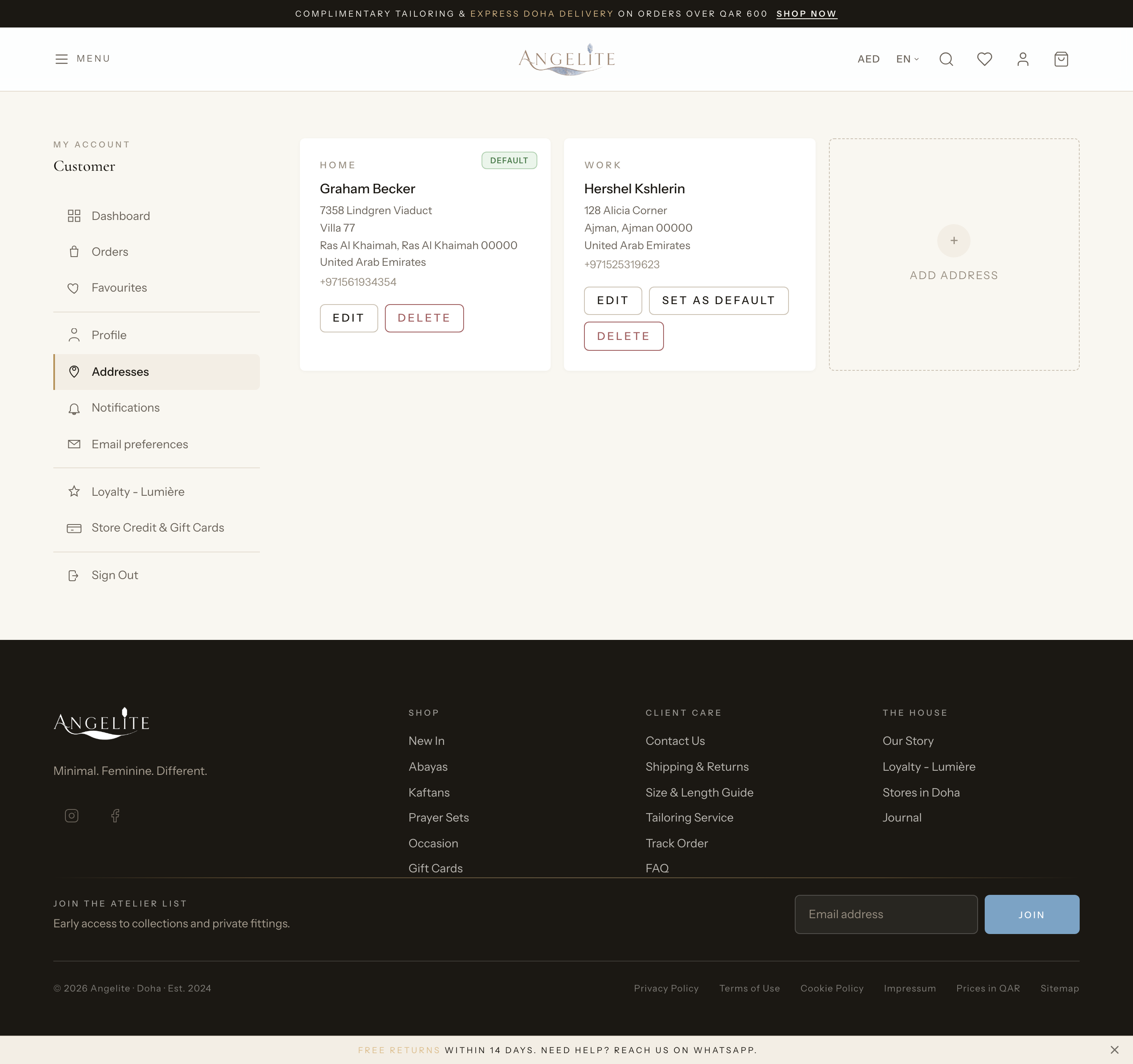
A personal address book. Customers save as many addresses as they like (for example
Home and Work) and mark one as the default that is pre-filled at checkout, so a repeat purchase
goes through in a couple of taps, while the mood to buy is still there.
In practice
A customer often sends Eid gifts to her sister in Riyadh but ships her own
abaya orders to her flat in Doha, and she is tired of typing both addresses every time.
How Angelite handles it: she opens Account → Addresses,
clicks Add address and saves both as Home and Sister-Riyadh, marking her Doha flat
as the default. At her next checkout the Doha address is already filled in, and the Riyadh one is a
single pick from the list, so a gift order takes seconds.
How to use it
Open Account → Addresses to see the saved addresses.
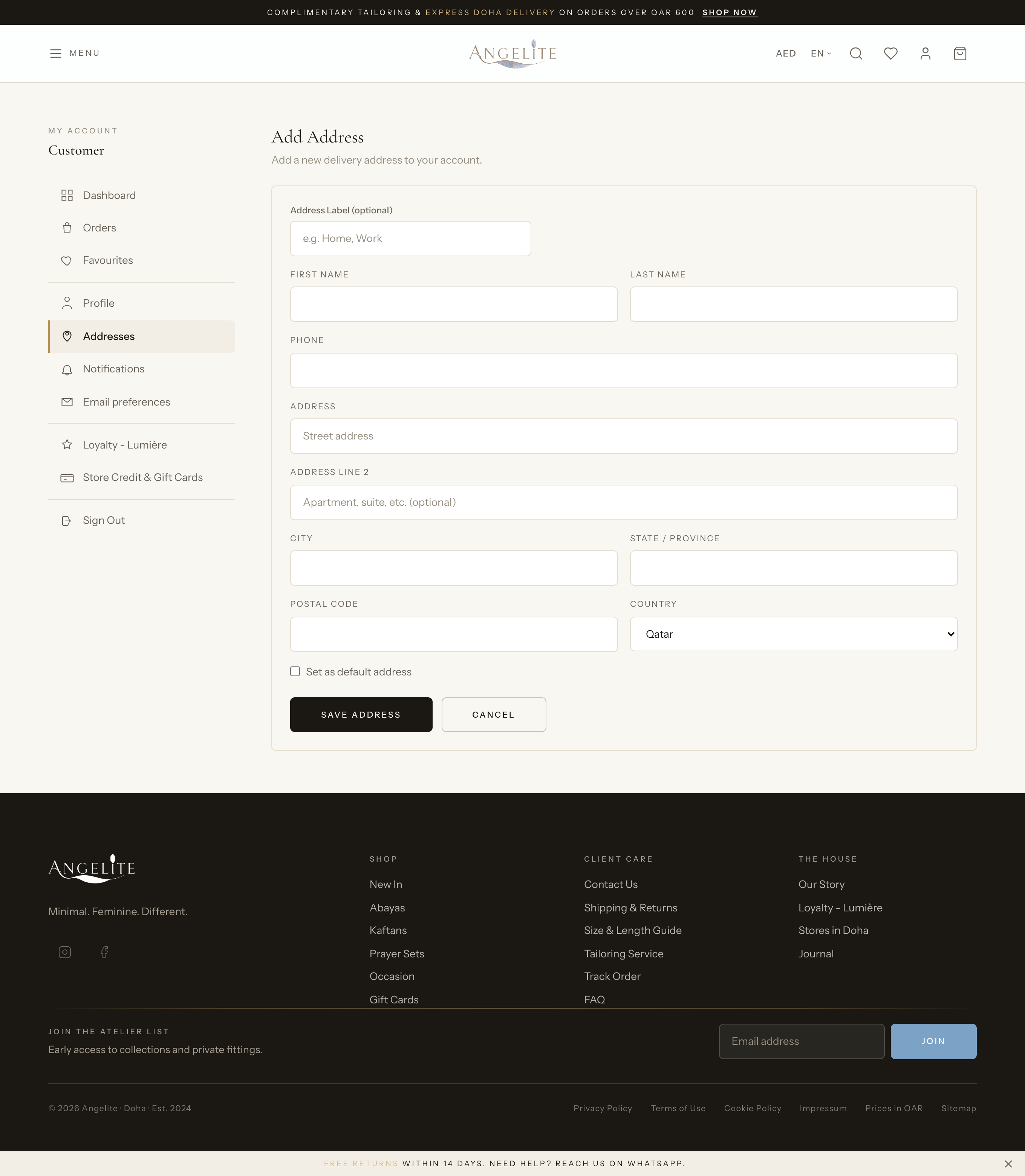
Click Add address and fill in the name, phone and full address.
Save the address; it is now available to pick at checkout.
Set any address as the default, or edit and remove addresses at any time.
Where: Account → Addresses.Where: the add-address form, where the customer enters the details.
Favorites / wishlist
Customer
The problem: a shopper adores a piece but is not ready to buy
today. She closes the tab, forgets where she saw it, and a sale you nearly had quietly dies in a
lost browser tab.
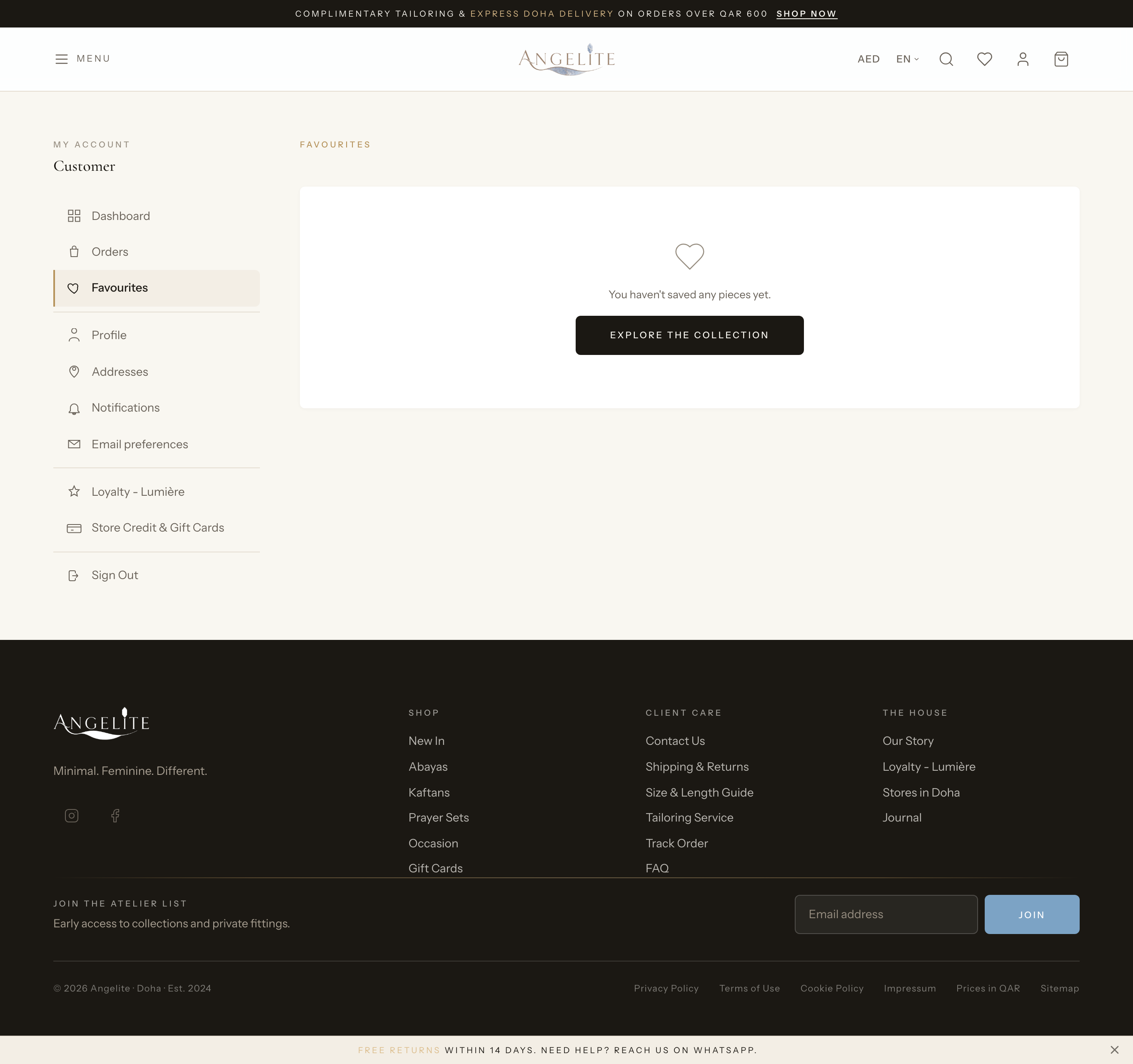
A saved list of products a customer loves but is not ready to buy yet. She taps the
heart on any product as she browses, then comes back to one list to compare, revisit or remove
them: a direct path back to your products that turns hesitation into a later sale.
In practice
A shopper spots three ready-to-wear abayas in different colorways she adores but
wants to wait for payday before choosing one, and she does not want to lose track of them.
How Angelite handles it: she taps the heart on each abaya as she browses, and they
drop into Account → Favorites. When payday comes she opens that one list,
compares the three side by side, taps the one she wants to reopen its page, and removes the other
two she has decided against.
How to use it
Tap the heart on any product to save it to favorites while browsing.
Open Account → Favorites to see everything saved in one place.
Click a product to revisit it, or remove it from the list when no longer wanted.
Where: Account → Favorites.
Rewards & wallet
Loyalty
CustomerOptional · Loyalty Points
The problem: a repeat customer has no visible reason to choose
you again over the next boutique, and running a rewards scheme by hand, with punch cards or a
spreadsheet, is work you do not have time for.
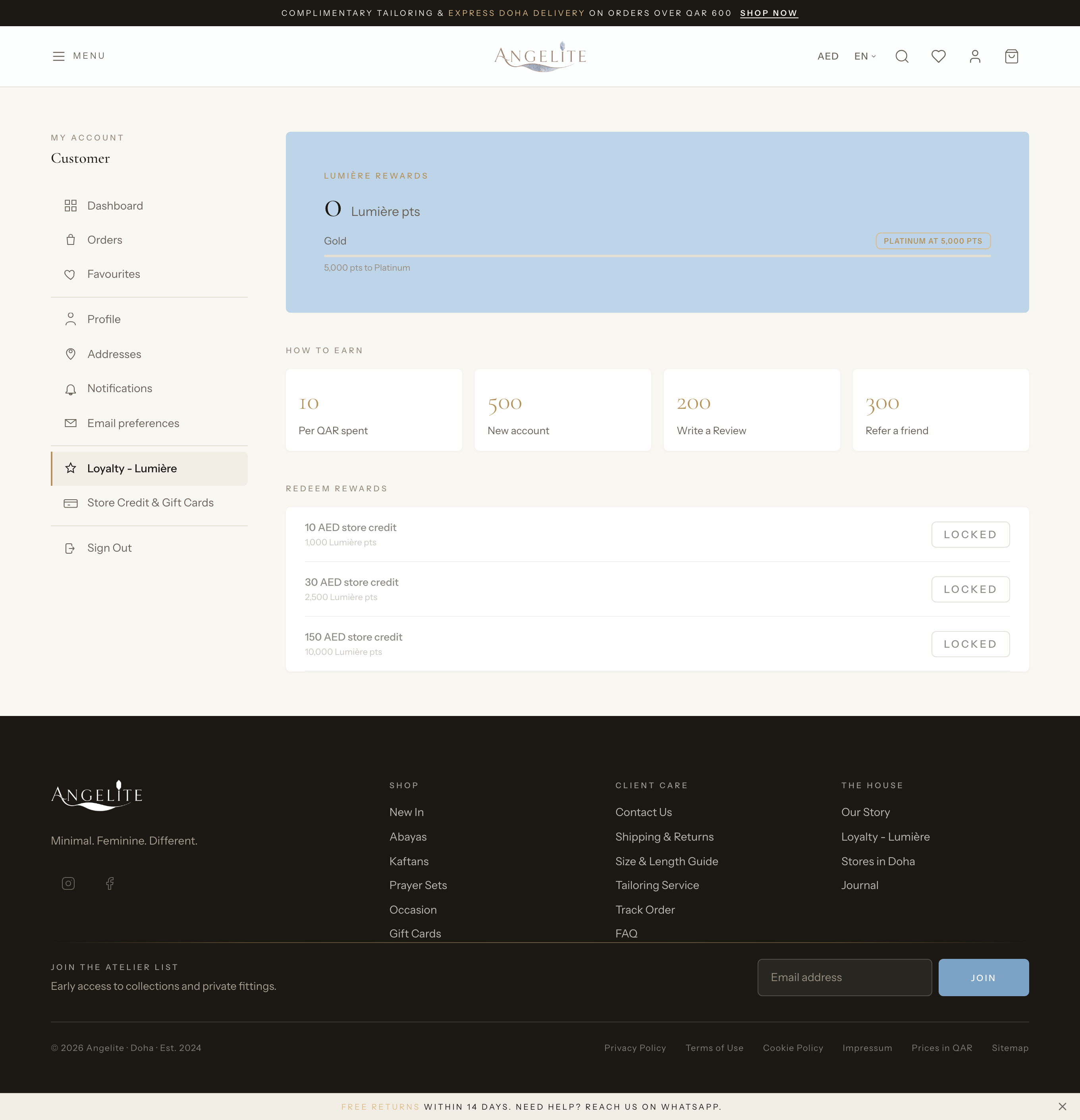
A rewards page where customers watch their points grow and see exactly which orders
earned them. Points build up on their own when orders are paid, and if you let customers turn
points into store credit, they do that themselves straight from this page, with nothing for you to
track or apply.
In practice
A loyal customer has bought several pieces over the year and wonders whether her
collected points are finally worth a discount on her next made-to-order abaya.
How Angelite handles it: she opens Account → Loyalty and
sees her points balance and the history of every order that earned them. Because you let
customers turn points into store credit, she enters how many points to redeem, confirms, and
they become store credit on the spot, ready to knock money off her order at checkout, deposit
included.
How to use it
Open Account → Loyalty to see the current points balance and history.
If you let customers turn points into store credit, she enters or picks how many points to redeem.
She confirms; the points become store credit that is ready to use at checkout.
Where: Account → Loyalty (visible when the Loyalty module is on).
Optional module: switch Loyalty on or off under
Settings → Features. Points already earned always stay spendable even when new
earning is turned off.
Store credit & gift cards
CustomerOptional · Gift Cards
The problem: when something goes wrong and you refund to a card,
that money leaves your shop for good. And when a shopper wants to give an abaya but dares not
guess the style or size for someone else, there is nothing to hand over except cash.
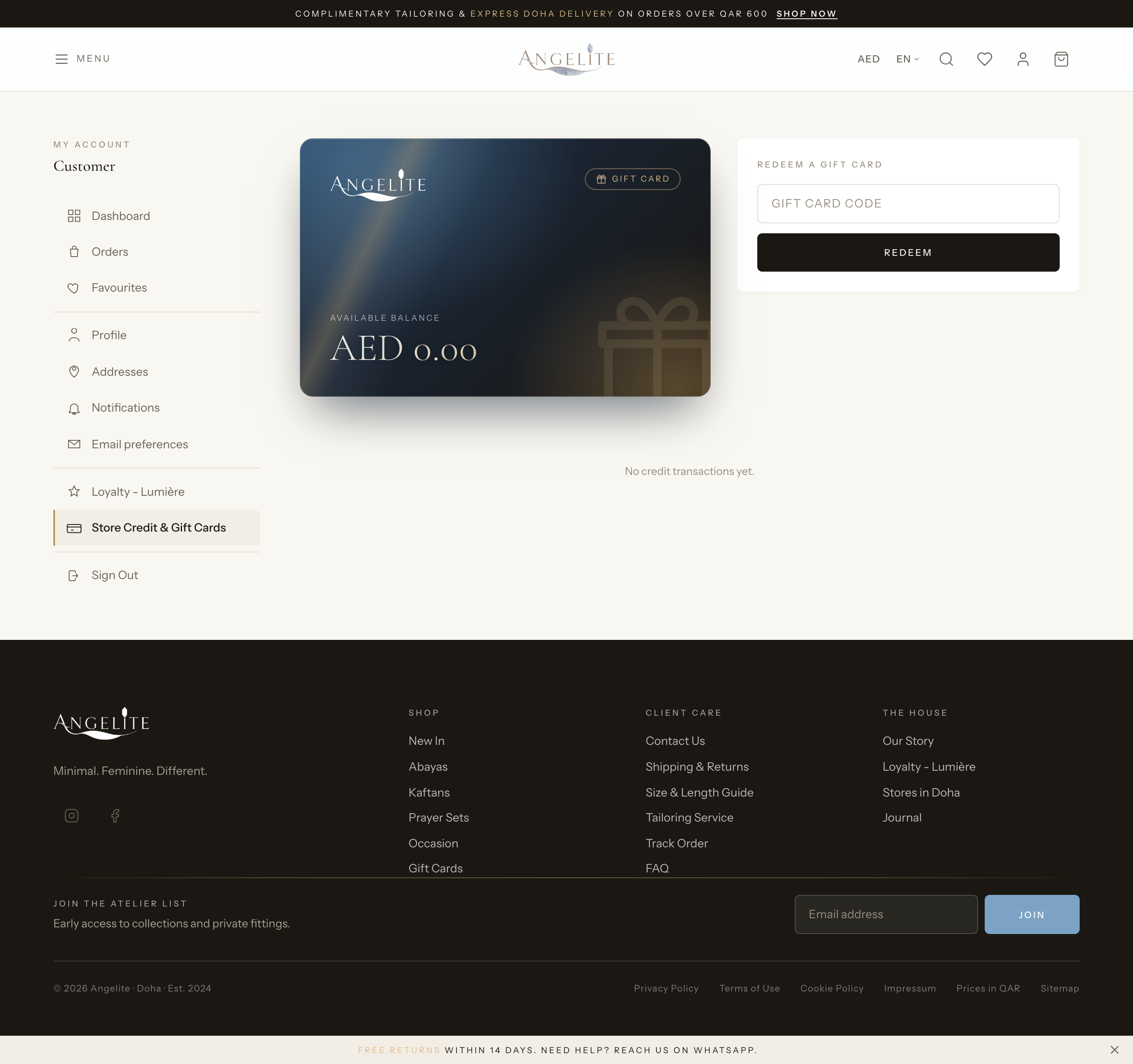
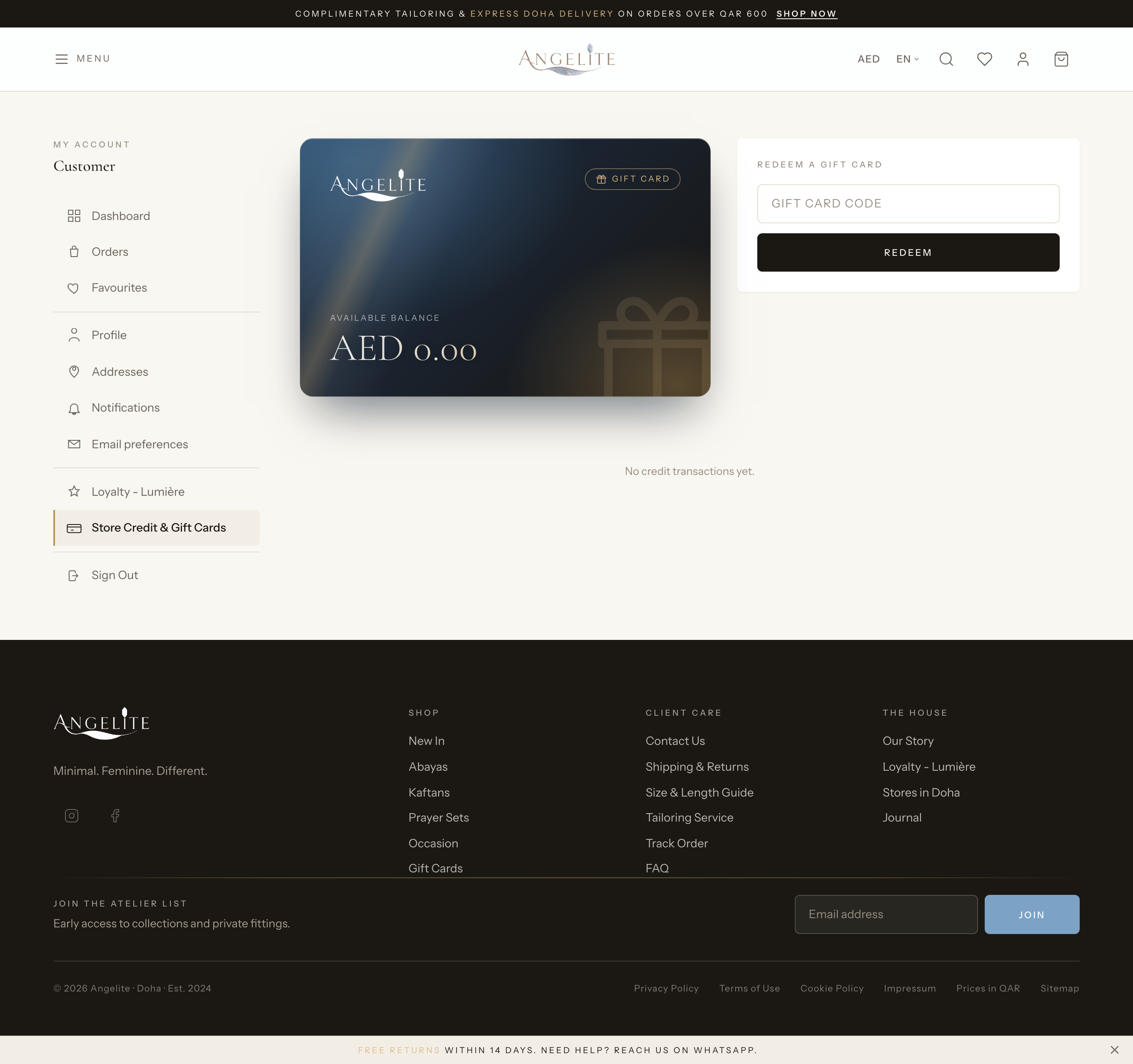
One wallet page that brings together a customer's spendable balance and everything
to do with gift cards. Money from a refund can become store credit she spends with you again,
instead of drifting back to her card; and from the same page she can redeem a gift-card code, buy
a card for herself or as a gift, and track the cards she has bought, each card in someone else's
hands a new customer for you.
In practice
A customer receives a gift-card code from her mother for Eid and also wants to
send her own friend a card for a wedding-season gift.
How Angelite handles it: she opens Account → Store Credit & Gift
Cards, types her mother's code into the redeem box, and the amount lands in her balance
right away. Then she picks an amount, chooses the gift option, enters her friend's details and pays,
and the new card appears under Your gift cards with an Active status she can track.
How to use it
Open Account → Store Credit & Gift Cards to see the balance and history.
To add credit, enter a gift-card code in the redeem box; its value is added to the balance.
To buy a gift card, pick an amount, choose whether it is for you or a gift (with the recipient's
details), and pay.
Scroll to Your gift cards to find the cards you bought, each with its code and an
Active, Used or Expired status.
Where: Account → Store Credit & Gift Cards, with the balance and redeem box.Where: the same page, showing the buy-a-gift-card flow and the cards you own.
Optional module: the gift-card buying and redeeming surfaces switch on
and off under Settings → Features. Store credit from refunds always stays
spendable.
Staying in touch
Notification preferences
Customer
The problem: you send order updates by email, but plenty of
customers barely open their inbox. The update goes unread, and the "did my order ship" question
arrives in your messages anyway.
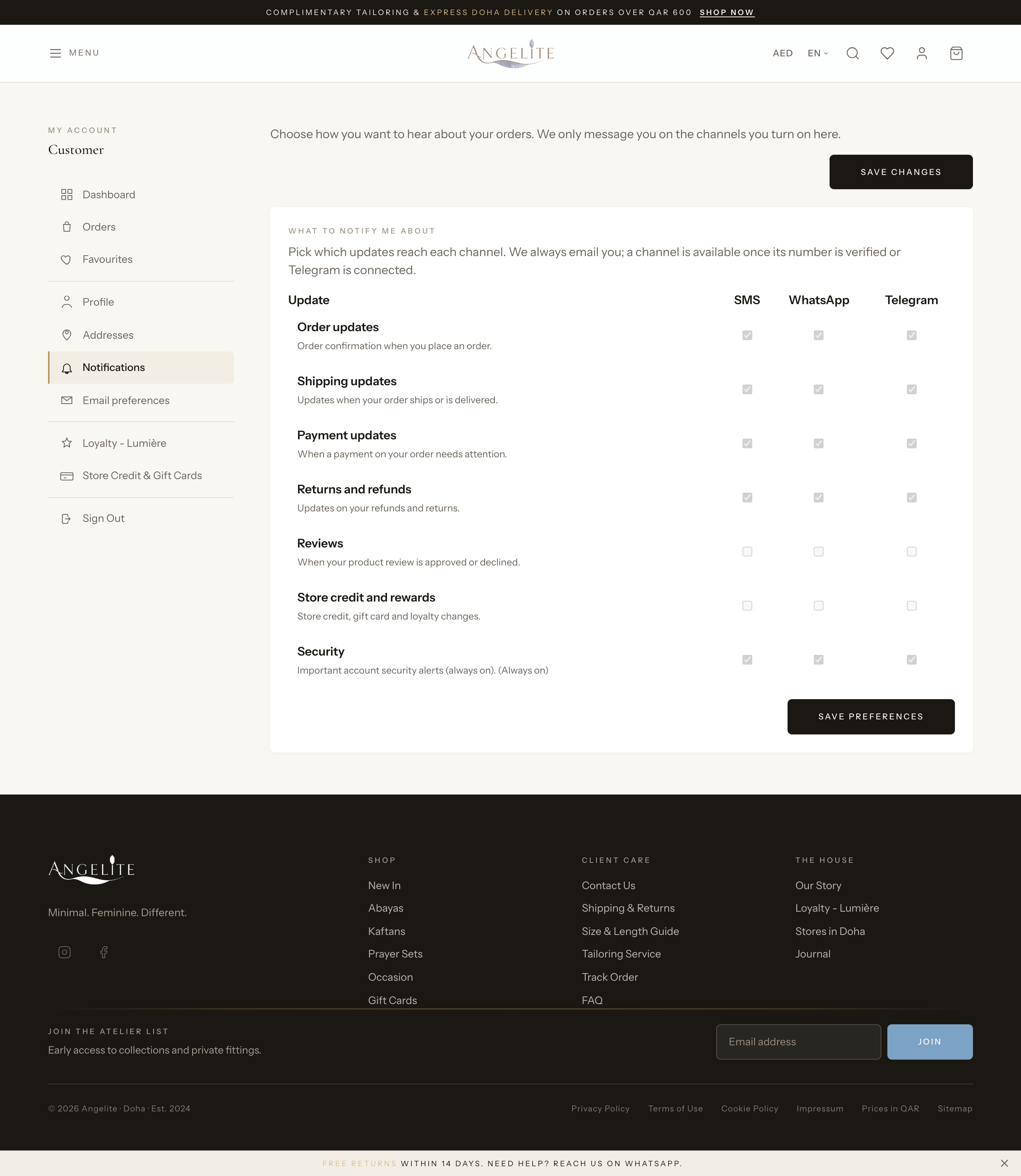
Where a customer chooses how the store reaches her with order and account updates,
channel by channel (such as SMS, WhatsApp or Telegram). She saves her number for the channel she
actually reads, or links her Telegram, and updates land where she will really see them.
In practice
A customer barely checks email but lives on WhatsApp, and wants her order updates
for a made-to-order abaya with hand-beaded sleeves to reach her where she will actually see them.
How Angelite handles it: she opens Account → Notifications,
switches the WhatsApp channel on and saves her number. From then on her shipping and delivery
updates arrive on WhatsApp. If she preferred Telegram instead, she would tap Connect
Telegram to link her Telegram in one step.
How to use it
Open Account → Notifications.
Turn each channel on or off and enter the contact details it needs.
For Telegram, use Connect Telegram to link her Telegram in one step.
Save; updates then arrive on the channels the customer chose.
Where: Account → Notifications.
Please note: a channel only appears here once the store has set it up,
so customers see exactly the options that are actually available.
Email preferences
Customer
The problem: a customer who finds your offers too frequent has
two blunt tools: the spam button, which hurts how every inbox treats your mail, or an unsubscribe
she fears will silence her order emails too.
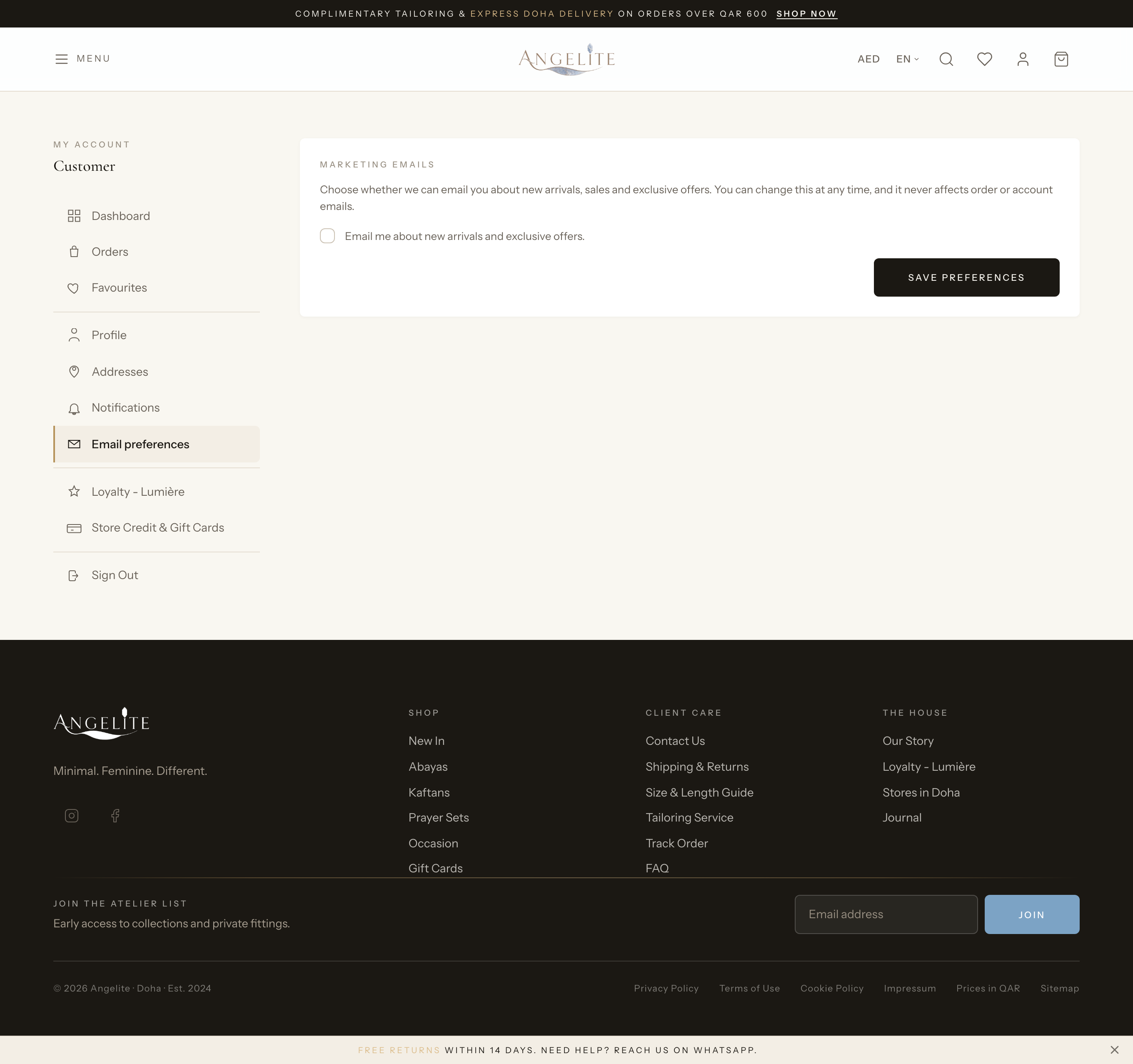
A simple, dedicated page for one choice: whether the customer wants marketing emails
such as newsletters and offers. Order and account emails are never affected, so she can opt out of
promotions gracefully and still get every receipt, and you stay on the right side of anti-spam
expectations.
In practice
A customer loves the new-collection newsletters but a friend of hers feels the
offer emails are too frequent and wants them to stop, while still getting her order receipts.
How Angelite handles it: the friend opens Account → Email
preferences and switches marketing emails off. Promotional mail stops at once and her
newsletter sign-up is kept in step, yet her order confirmations and shipping receipts keep arriving
untouched, because this page controls offers only.
How to use it
Open Account → Email preferences.
Switch marketing emails on to opt in, or off to opt out.
Save; the choice takes effect right away and keeps any newsletter sign-up in step.