You cannot fix what you cannot see: a slow week hides in scattered numbers, a
regular gets treated like a stranger, and a small problem festers into a lost customer. This
chapter is the day-to-day toolkit for staying ahead of all of it: your key numbers on one
dashboard, the full story on every customer, credit and points to make things right on the spot,
and alerts that reach you before the phone rings.
The problem: to know how the shop is really doing you would have
to stitch numbers together from orders, payments and stock, so a slow week or a sold-out
bestseller can hide for days before anyone notices, and by then it has cost you sales.
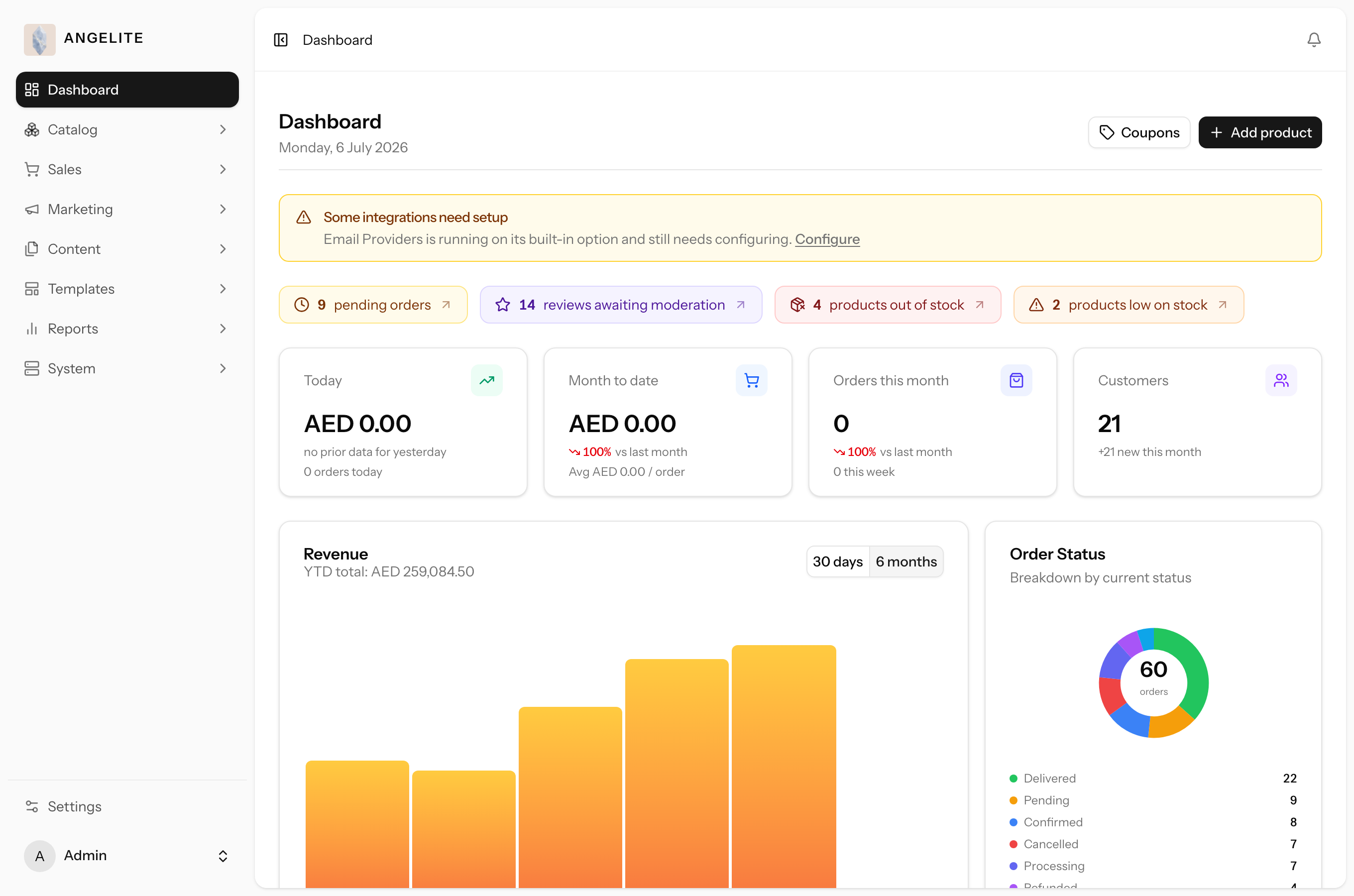
The page you land on every time you open the admin area. It gathers your key numbers
(revenue, orders and customers) into one screen, each figure worked out for you and shown against
how it compared with the week before. A short "needs attention" strip flags pending orders,
reviews awaiting moderation, and low or out-of-stock products.
In practice
Say it is a quiet Tuesday morning in Doha and you open the shop's admin to see how the
weekend abaya sale really did before you start packing today's parcels.
How Angelite handles it: the Dashboard opens on its own and the top tiles show the weekend's
revenue in riyals and the order count, each with an up or down arrow against the week before, so you can read the
result at a glance. You flip the chart toggle to the last 6 months to confirm the sale beat a normal week, then
click the "pending orders" chip in the attention strip to drop straight into the three orders still waiting to be
packed.
How to use it
Sign in to the admin area; the Dashboard opens automatically.
Read the top tiles for today's revenue and orders, plus customer counts, each showing whether it is up or down on the week before.
Use the chart range toggle to switch between the last 30 days and the last 6 months.
Click any chip in the attention strip to jump straight to the orders, reviews or stock that need a look.
Where: the admin landing page, with KPI tiles, charts and the attention strip.
Good to know: the headline numbers and lists appear instantly, while the
heavier charts stream in a moment later so the page is never slow to open.
Looking after customers
Customers directory
Admin
The problem: a regular customer calls and whoever picks up sees
nothing: no history, no usual address, no idea she has spent thousands with you. She has to repeat
herself from scratch, and it shows.
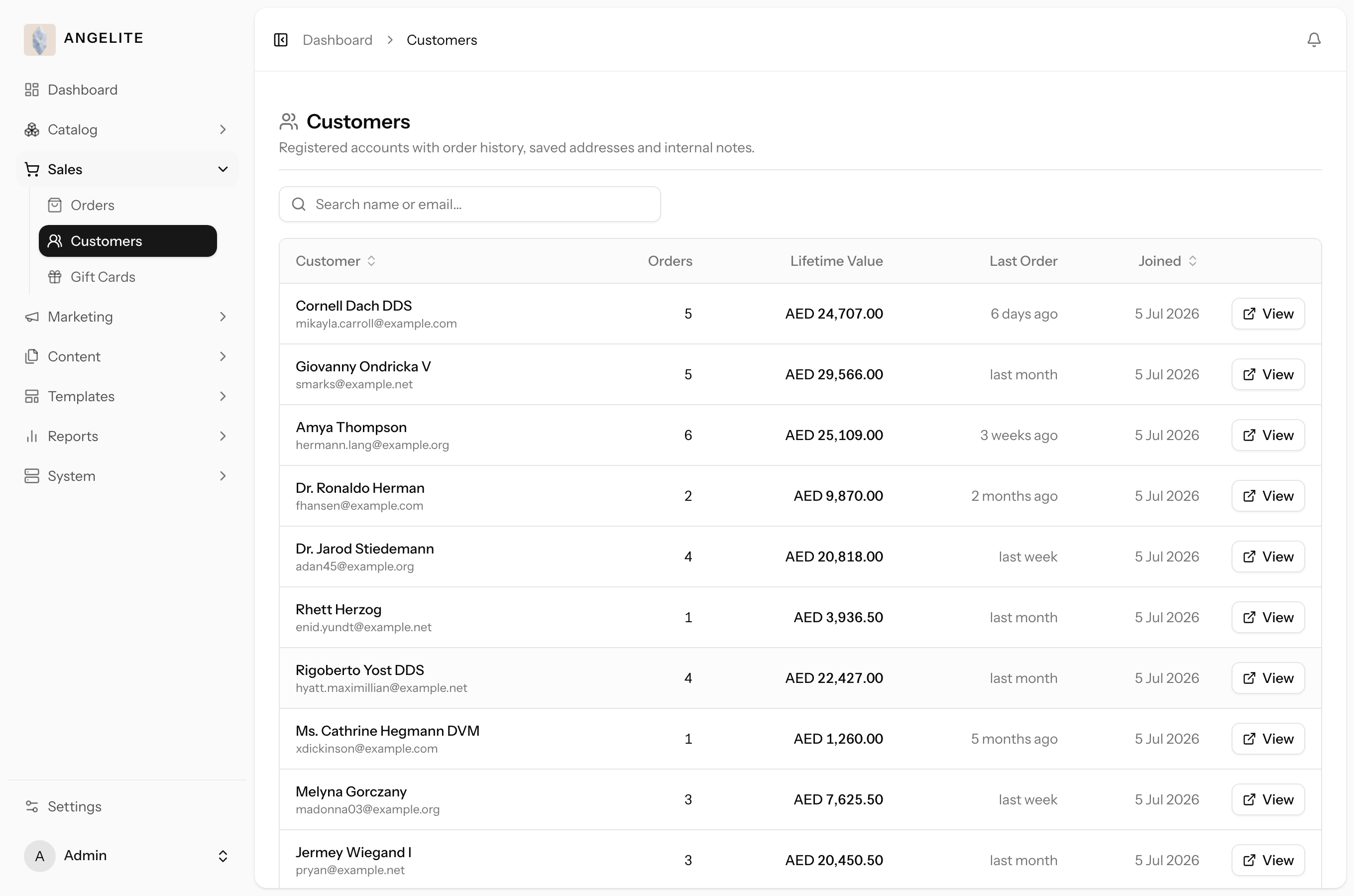
Search and browse every customer, then open a profile to see everything she has
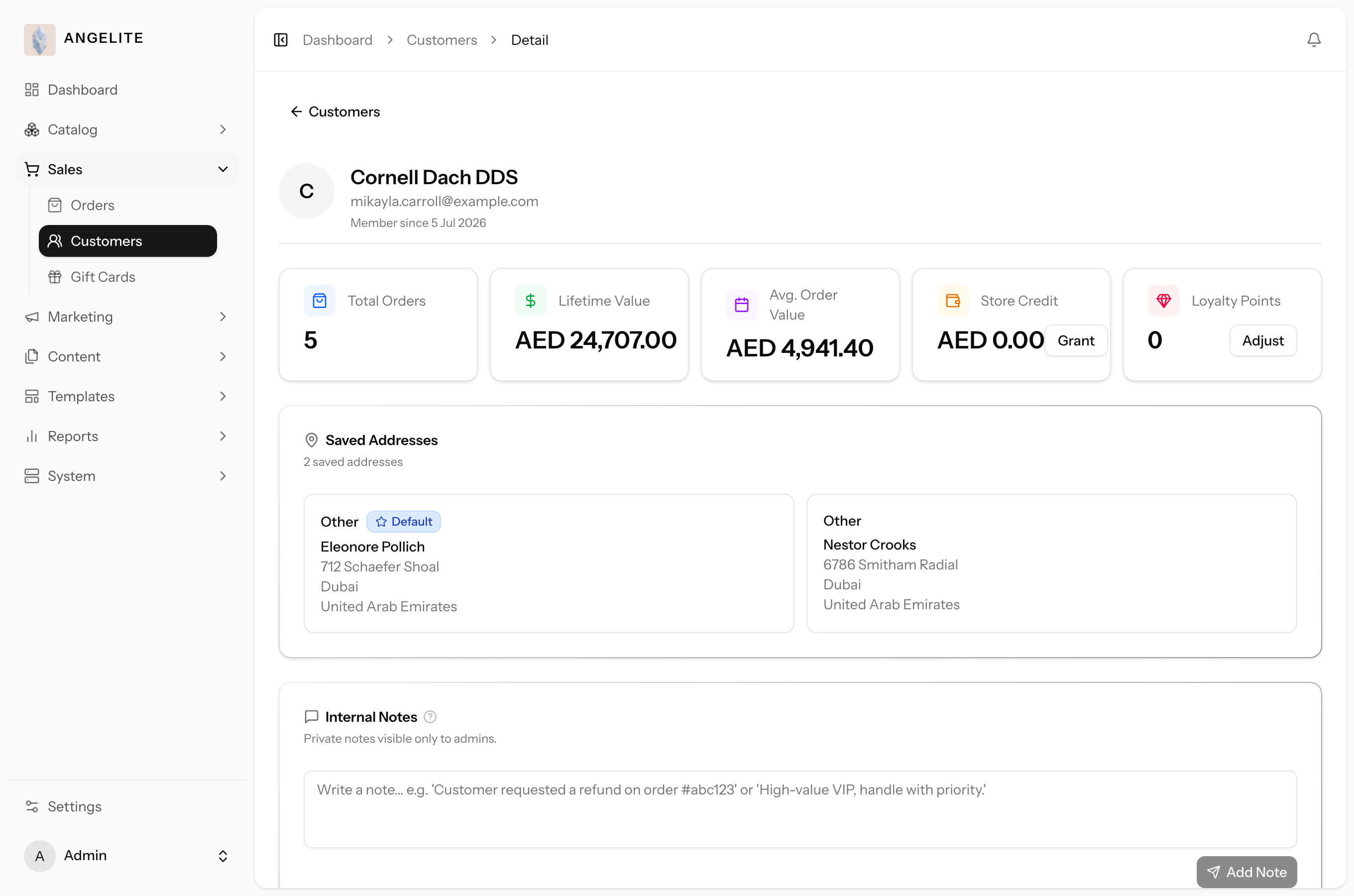
spent with you, her order history and her saved addresses in one place, so whoever answers next
has the full story in front of them. You can also keep private internal notes on a customer; the
customer never sees them.
In practice
A regular customer calls and says she wants the same emerald-green crepe abaya she bought last
year, but this time as a gift, and she asks you to ship it to her usual address.
How Angelite handles it: you open Customers, type her name in the search box, and click her row
to open the profile. Her order history shows the exact emerald-green abaya she ordered, her saved Doha address is
right there to confirm, and her total spend over the years tells you she is a valued regular. You add a private note in the
notes panel ("prefers gift wrap, leave parcel with the building concierge") so whoever packs it later sees the same
context, and the customer never sees that note.
How to use it
Open Customers and use the search box to find someone by name or email.
Click a row to open the customer's profile.
Review their total spend, order count, recent orders and saved addresses.
Add a private note in the notes panel, and edit or delete your notes at any time.
Where: Customers, with search across the full list.Where: a customer profile, showing stats, order history, addresses and private notes.
Tip: notes are perfect for context the next person needs, such as a
delivery preference or a past goodwill gesture.
Store credit grant
Admin
The problem: a made-to-order abaya runs a week late, or arrives
with a small flaw, and the customer is rightly unhappy. A formal return is slow and sends the money
away; what you need is a way to make it right in the next sixty seconds.
Add money to a customer's wallet on the spot, as a goodwill gesture or to put a
problem right. The credit lands in her store-credit balance, she is emailed that it is there, and
she spends it at checkout, with you, on her next order, so the apology itself brings her back.
In practice
Imagine a customer's gift-boxed made-to-order kaftan arrived with a pulled thread in the
hand-beading, and rather than send her through a full return you want to keep her happy with a goodwill gesture
toward her next purchase.
How Angelite handles it: you open her profile from Customers, go to the store-credit panel, and
enter 150 riyals with a short reason ("goodwill, pulled beading thread on order"). You submit, the 150 riyals land in
her wallet straight away, and she gets an email telling her the balance is there. Next time she checks out she simply
applies the credit against her order total.
How to use it
Open the customer's profile from Customers.
In the store-credit section, enter the amount to add and a short description of why.
Submit. The credit is added to their wallet and they receive a notification email.
Where: the store-credit panel on the customer profile.
Good to know: store credit grants keep working even if the gift-card
feature is switched off, so refunds and goodwill credit are always available.
Loyalty adjustment
AdminOptional · Loyalty Points
The problem: the automatic points rules only know about paid
orders. They cannot thank the customer who waited patiently for a delayed made-to-order abaya, or
the one who sent you half her friends, and those are exactly the moments that decide whether she
stays yours.
Award extra loyalty points by hand, or correct a balance up or down. Points normally
build up on their own when an order is paid; this is for the special cases, the on-the-spot
goodwill gesture that keeps a customer. She is emailed whenever her points change.
In practice
Say a loyal customer shared a beautiful photo of her hand-embroidered abaya with her followers
and tagged the shop, and you want to thank her with a points bonus on top of what her orders already earned.
How Angelite handles it: you open her profile from Customers, scroll to the loyalty panel, and
enter 200 as a positive number with the reason "thank-you for sharing our embroidery." You submit, her points
balance rises by 200 right away, and she gets an email about the change. If you ever needed to correct a mistaken
award, you would enter a negative number in the same panel to take points back.
How to use it
Open the customer's profile from Customers.
In the loyalty section, enter the number of points to add (a positive number) or remove (a negative number), with a short reason.
Submit. Their points balance updates and they receive a notification email.
Where: the loyalty panel on the customer profile.
Optional module: switch Loyalty on or off under
Settings → Features. When off, existing points stay spendable at checkout.
Balances and rewards
Gift cards
AdminOptional · Gift Cards
The problem: a shopper wants to give an abaya but dares not
choose the style or size for someone else. With nothing to hand over except cash, that sale walks
out of the shop.
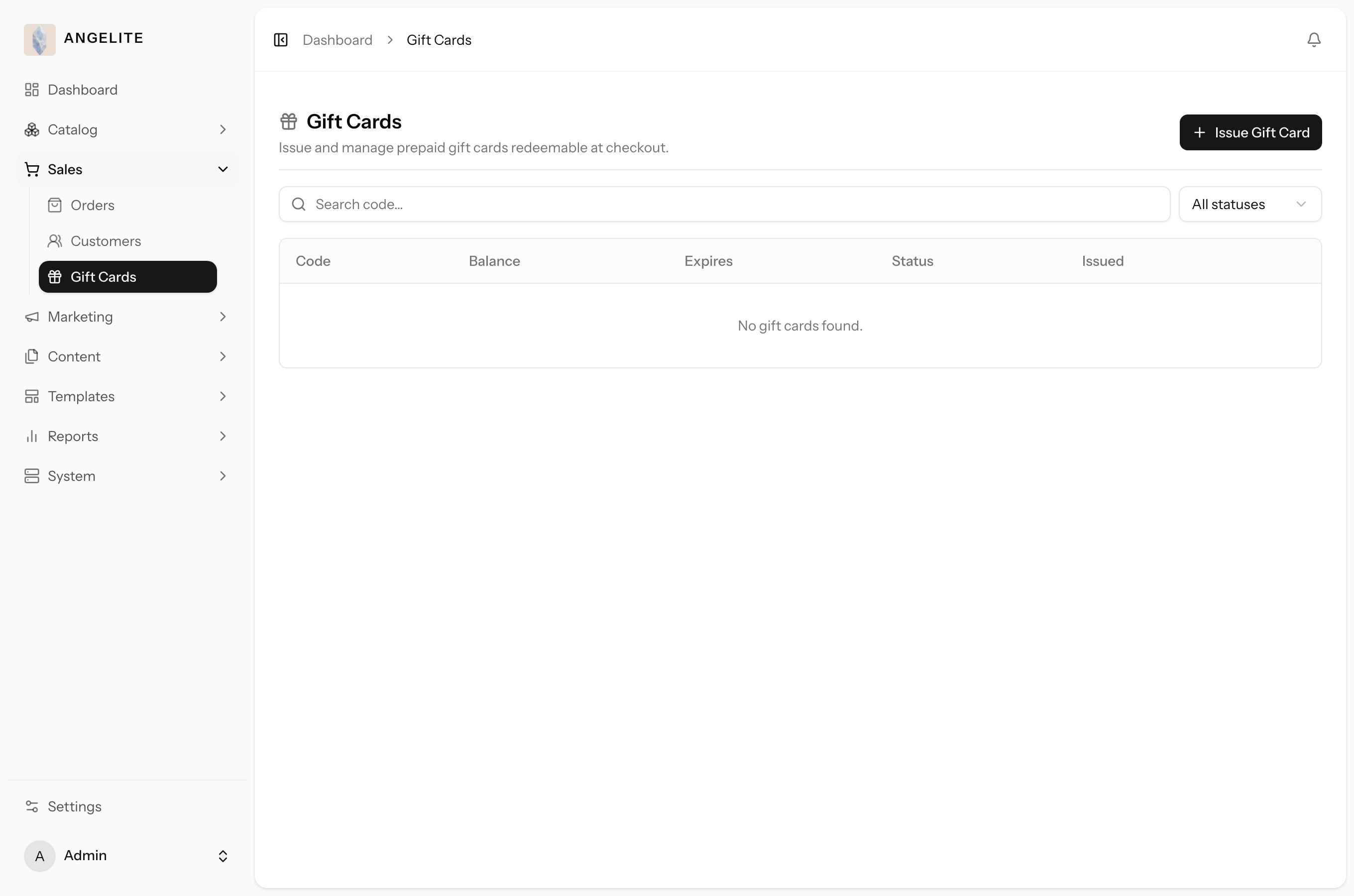
Issue gift cards with a money balance and a code, then manage and retire them from
one list. The buyer pays today, the recipient redeems the code to turn its balance into store
credit on her own account, and the person who will actually wear the piece gets the choice. You
can search cards by code, filter by active or inactive, and delete a card you no longer want in
use.
In practice
A walk-in shopper wants to buy a gift card of 500 riyals for his sister's Eid present so she can
choose her own abaya from your collection later.
How Angelite handles it: you open Gift cards, click Add, set the amount to 500 riyals with an
optional expiry, and save. The new card appears in the list with its own code and an active status, which you pass
to the customer for his sister. When she redeems that code on her account, the 500 riyals become store credit she can
spend at checkout. If a card is ever lost or should no longer be used, you find it with the search box and use
delete to retire it, while its balance and history stay on record.
How to use it
Open Gift cards to see every card with its code, balance and status.
Click Add to issue a new card, set its amount and an optional expiry, and save.
Use search and the active or inactive filter to find a specific card.
Use delete to retire a card; its balance and history are kept for your records.
Where: Gift cards (visible when the Gift cards module is on).
Optional module: switch Gift cards on or off under
Settings → Features. Cards a customer already holds stay spendable when off.
Staying informed
Admin notifications
Admin
The problem: a payment or email provider can start failing in
the middle of a busy gifting week, and nothing in the shop looks any different. Unless something
taps you on the shoulder, the first sign is an angry customer.
The in-app bell in the admin header keeps you posted on operational alerts, such as
a payment or email provider switching to a backup, or a connected provider whose details have
started failing. Open the bell for the recent items, or the full inbox for the whole history, and
act while the problem is minutes old.
In practice
Imagine your main card processor has a brief outage during a busy gifting week, and you would
never know unless something told you, because the shop quietly kept taking payments through your backup gateway.
How Angelite handles it: a red count appears on the bell in the top bar. You click it, see the
alert that your payment provider switched to its backup, and click straight through to the relevant settings page to
check the main gateway. Once you have read it you use Mark all read in the bell, or open View all for the full inbox
to clear older alerts at once, so the bell is clean again for the next thing that needs your eye.
How to use it
Click the bell in the top bar to see your most recent alerts, with a count of any unread.
Click an alert to follow it through to the relevant settings page.
Use Mark all read in the bell, or open View all for the full inbox.
On the inbox page, mark individual alerts read or clear them all at once.
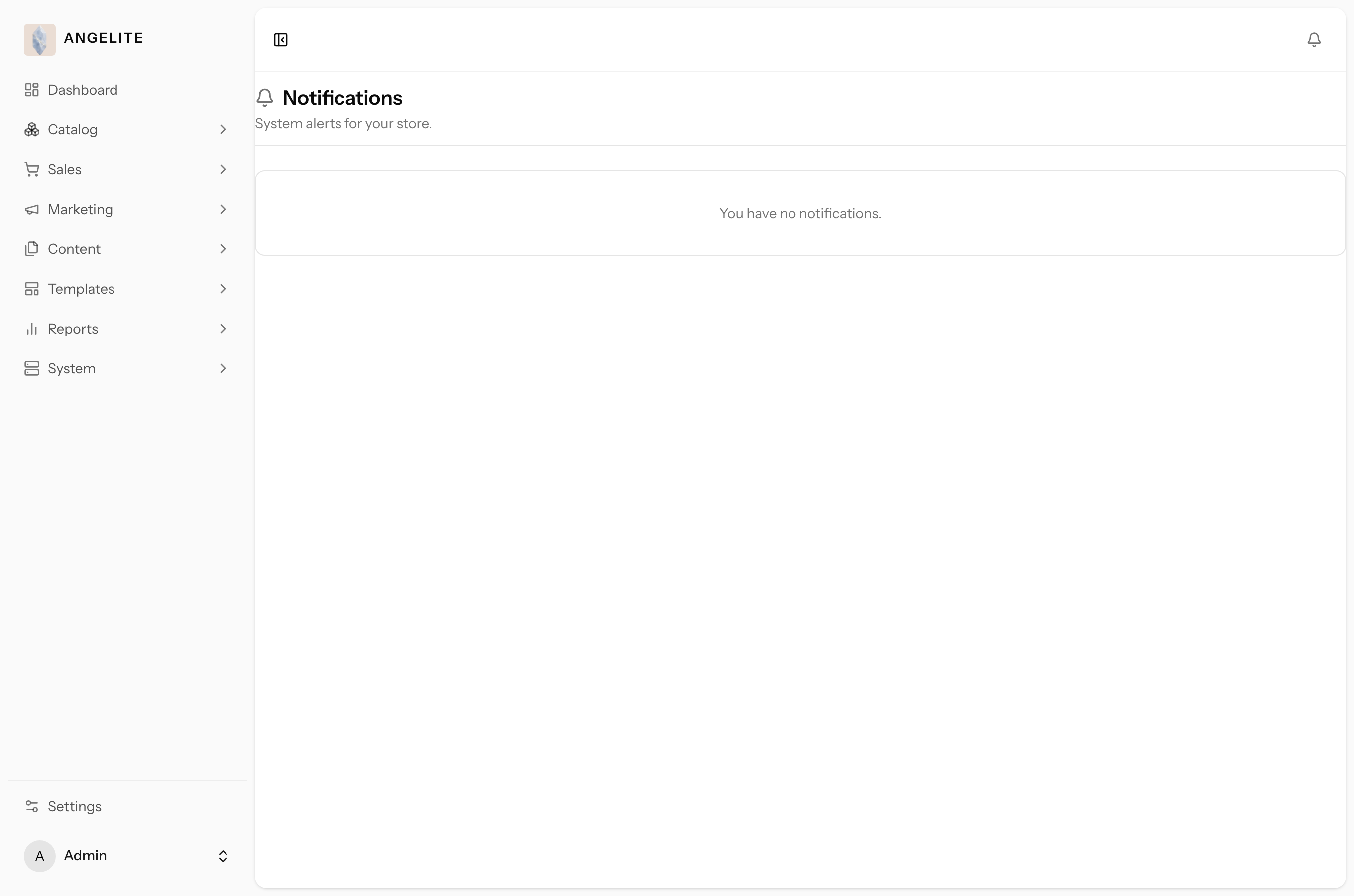
Where: the notifications inbox behind the header bell.
Good to know: each admin has their own inbox, so marking an alert read
only affects your own view.